Quick Start
Welcome to mcp_ohmy_sql! This guide will get you up and running with the SQL Model Context Protocol (MCP) server in just a few minutes.
What You’ll Achieve
By the end of this guide, you’ll have a fully functional SQL MCP server that enables you to:
Database Discovery
List available databases and their schemas
Explore table structures and relationships
Understand data models through AI-generated insights
Natural Language Querying
Ask business questions in plain English
Get SQL queries generated automatically
Receive formatted results with explanations
Data Analysis & Visualization
Generate business reports and insights
Create visualizations and charts
Build entity relationship diagrams
Prerequisites
Before we begin, make sure you have:
Claude Desktop installed (our AI client for this tutorial)
Basic familiarity with JSON configuration files
Access to download a sample database file
Note
While this guide uses Claude Desktop, mcp_ohmy_sql works with any MCP-compatible AI client.
Step 1: Configure Claude Desktop
First, we need to tell Claude Desktop about our MCP server. Following the official Claude Desktop Manual, locate your claude_desktop_config.json file:
Configuration File Locations:
macOS:
~/Library/Application Support/Claude/claude_desktop_config.jsonWindows:
%APPDATA%\Claude\claude_desktop_config.json
Open the file and add the following configuration to the mcpServers section:
{
    "mcpServers": {
        "OhMySql": {
            "command": "uvx",
            "args": [
                "--with",
                "mcp-ohmy-sql[sqlite,postgres]",
                "mcp-ohmy-sql"
            ],
            "env": {
                "MCP_OHMY_SQL_CONFIG": "/path/to/mcp_ohmy_sql.json"
            }
        }
    }
}
Tip
Database-Specific Dependencies
The [sqlite,postgres] part specifies which database drivers to install. Choose the ones you need:
sqlite- For SQLite databasespostgres- For PostgreSQL databasesmysql- For MySQL/MariaDB databasesmssql- For Microsoft SQL Serveroracle- For Oracle databases
Example: For MySQL and PostgreSQL, use mcp-ohmy-sql[mysql,postgres]
Tip
To use specific version of mcp_ohmy_sql, you can specify the claude_desktop_config.json:
"args": [
    "--with",
    "mcp-ohmy-sql[sqlite,postgres]==X.Y.Z",
    "mcp-ohmy-sql"
],
Important
Remember to update the MCP_OHMY_SQL_CONFIG path to point to where you’ll create your configuration file in the next step.
Step 2: Set Up Sample Database & Configuration
Now we’ll create a database configuration file and download a sample database to get you started quickly.
2.1 Download Sample Database
We’ll use the Chinook database, a popular sample database that contains data about a digital music store:
Download the Chinook_Sqlite.sqlite file
Save it to a convenient location (e.g., your home directory or Documents folder)
Note the full path to this file—you’ll need it for the configuration
Tip
About the Chinook Database
Chinook contains realistic data about:
Artists, albums, and tracks
Customers and employees
Invoices and sales data
Music genres and media types
It’s perfect for learning SQL and demonstrating database analytics!
2.2 Create Configuration File
Create a new file named mcp_ohmy_sql.json with the following content:
{
    "version": "0.1.1",
    "settings": {},
    "databases": [
        {
            "identifier": "chinook_sqlite",
            "description": "Chinook music store sample database - contains artists, albums, tracks, customers, and sales data",
            "connection": {
                "type": "sqlalchemy",
                "url": "sqlite:////path/to/Chinook_Sqlite.sqlite"
            },
            "schemas": [
                {
                    "name": null,
                    "table_filter": {
                        "include": [],
                        "exclude": [
                            "Playlist",
                            "PlaylistTrack"
                        ]
                    }
                }
            ]
        }
    ]
}
See also
See Configuration Guide for a complete reference on the configuration options available in mcp_ohmy_sql.json.
2.3 Update Configuration Paths
Important
Critical Configuration Updates
Database Path: Replace
/path/to/Chinook_Sqlite.sqlitewith the actual absolute path to your downloaded database fileEnvironment Variable: Update the
MCP_OHMY_SQL_CONFIGpath inclaude_desktop_config.jsonto point to your mcp_ohmy_sql.json file
Example paths:
macOS/Linux:
sqlite:////Users/username/Downloads/Chinook_Sqlite.sqliteWindows:
sqlite:///C:\\Users\\username\\Downloads\\Chinook_Sqlite.sqlite
Note
Configuration Explanation
Table Filtering: We exclude
PlaylistandPlaylistTracktables to keep the initial exploration focused on core music store dataSchema Name:
nullmeans we’re using the default SQLite schemaIdentifier:
chinook_sqliteis how we’ll reference this database in queries
Step 3: Launch Claude Desktop
With your configuration complete, it’s time to start Claude Desktop and connect to your database.
Restart Claude Desktop completely (quit and relaunch) to load the new MCP configuration
Start a new conversation - you should see the MCP tools become available
Verify connection by checking the tools panel - you should see available database tools

Tip
Success Indicators
Look for these signs that everything is working:
Tools panel shows database-related functions
No error messages in Claude Desktop
You can start asking database questions immediately
Troubleshooting
If you encounter issues, here are the most common problems and solutions:
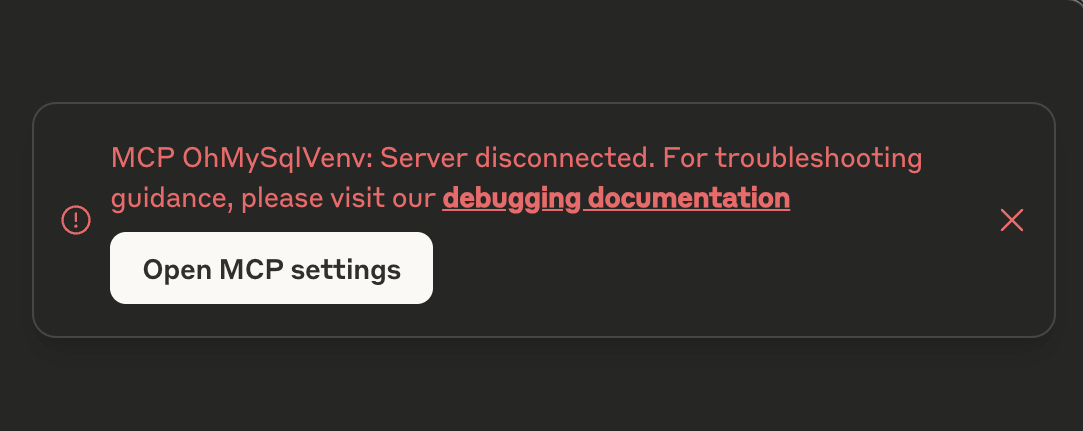
Problem: “uvx command not found”
This means the uvx package manager isn’t installed or available in your system PATH.
# Install uvx
pip install uv

# Test installation
uvx --version
If the global installation doesn’t work, you can specify the absolute path in your Claude configuration:
{
    "command": "/path/to/uvx",
    "args": ["--with", "mcp-ohmy-sql[sqlite]", "mcp-ohmy-sql"]
}
Problem: “Claude Desktop cannot connect to the MCP server”
First, ensure you have the latest version of uv installed. If you encounter error messages related to claude_desktop_config.json, this typically indicates that the uv command is not properly recognizing your MCP server configuration.
Otherwise, this is usually a configuration issue. Check these items:
Verify JSON syntax - Ensure your mcp_ohmy_sql.json file is valid JSON
Check file paths - Confirm all paths are absolute and accessible
Test database connection independently:
import sqlalchemy as sa

# Test your exact connection string
engine = sa.create_engine("sqlite:////your/path/to/Chinook_Sqlite.sqlite")
with engine.connect() as conn:
   result = conn.execute(sa.text("SELECT 1"))
   print("Database connection successful:", result.fetchone())
Problem: “No tools available” or missing database functions
Restart Claude Desktop completely (not just refresh)
Check the Claude Desktop logs for detailed error messages
Verify the
MCP_OHMY_SQL_CONFIGenvironment variable path is correct
Exploring Your Database with AI
Now comes the exciting part! Let’s explore what you can do with your connected database. The following examples show real interactions with the Chinook database using natural language.
What You Can Do:
Database Discovery
List available databases and schemas
Explore table structures and relationships
Understand your data model
Business Intelligence
Ask complex business questions in plain English
Get automatically generated SQL queries
Receive formatted results with insights
Data Visualization
Create charts and reports
Generate entity relationship diagrams
Export results for presentations
Example 1: Discover Your Data
Start by asking AI what’s available in your database:
“Tell me about all databases I have”
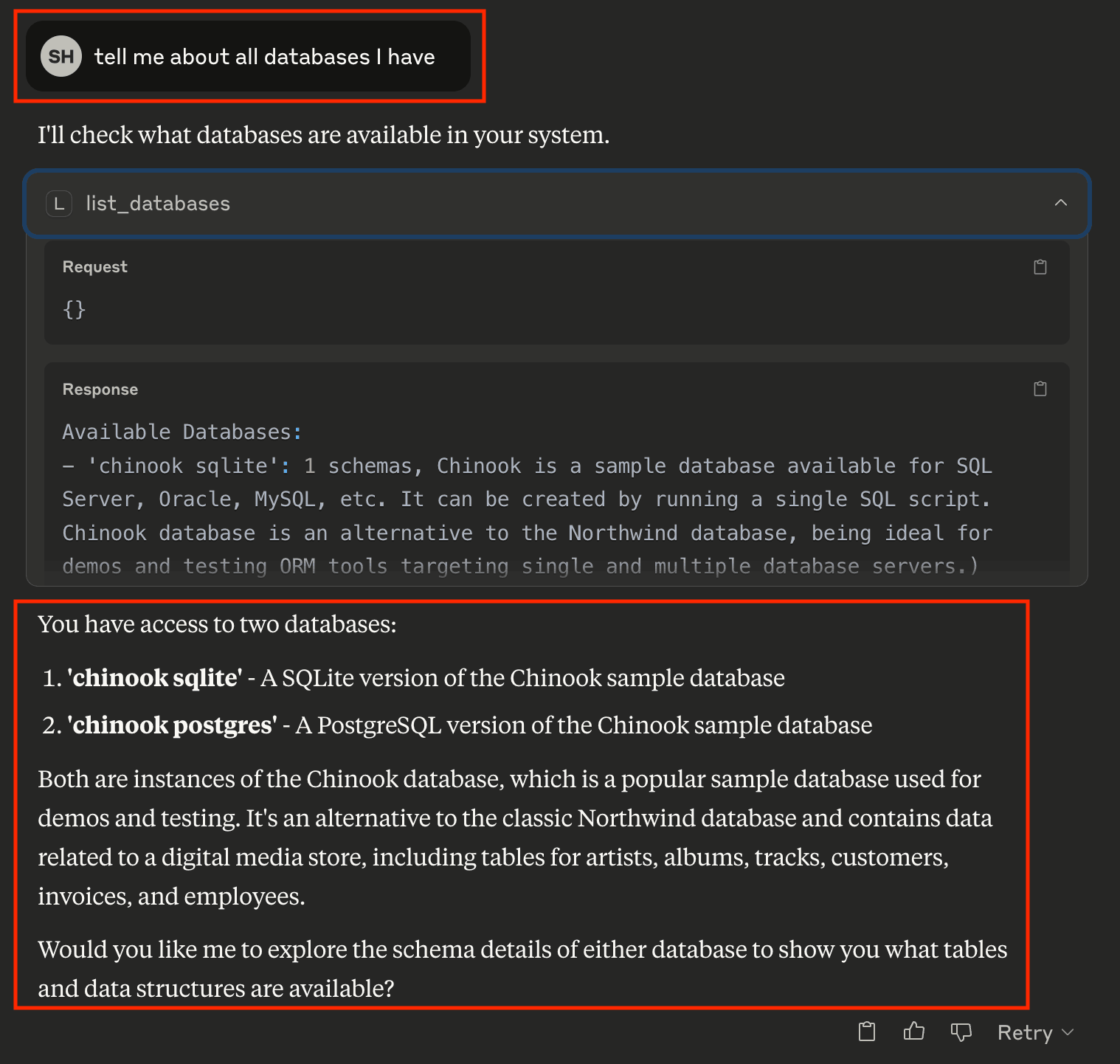
As you can see, AI uses the list_databases tool to show your configured databases. In this case, we have both SQLite and PostgreSQL versions of the Chinook database available.
Example 2: Understand Your Schema
Next, explore the structure of your database:
“Show me the schema details of the chinook database”
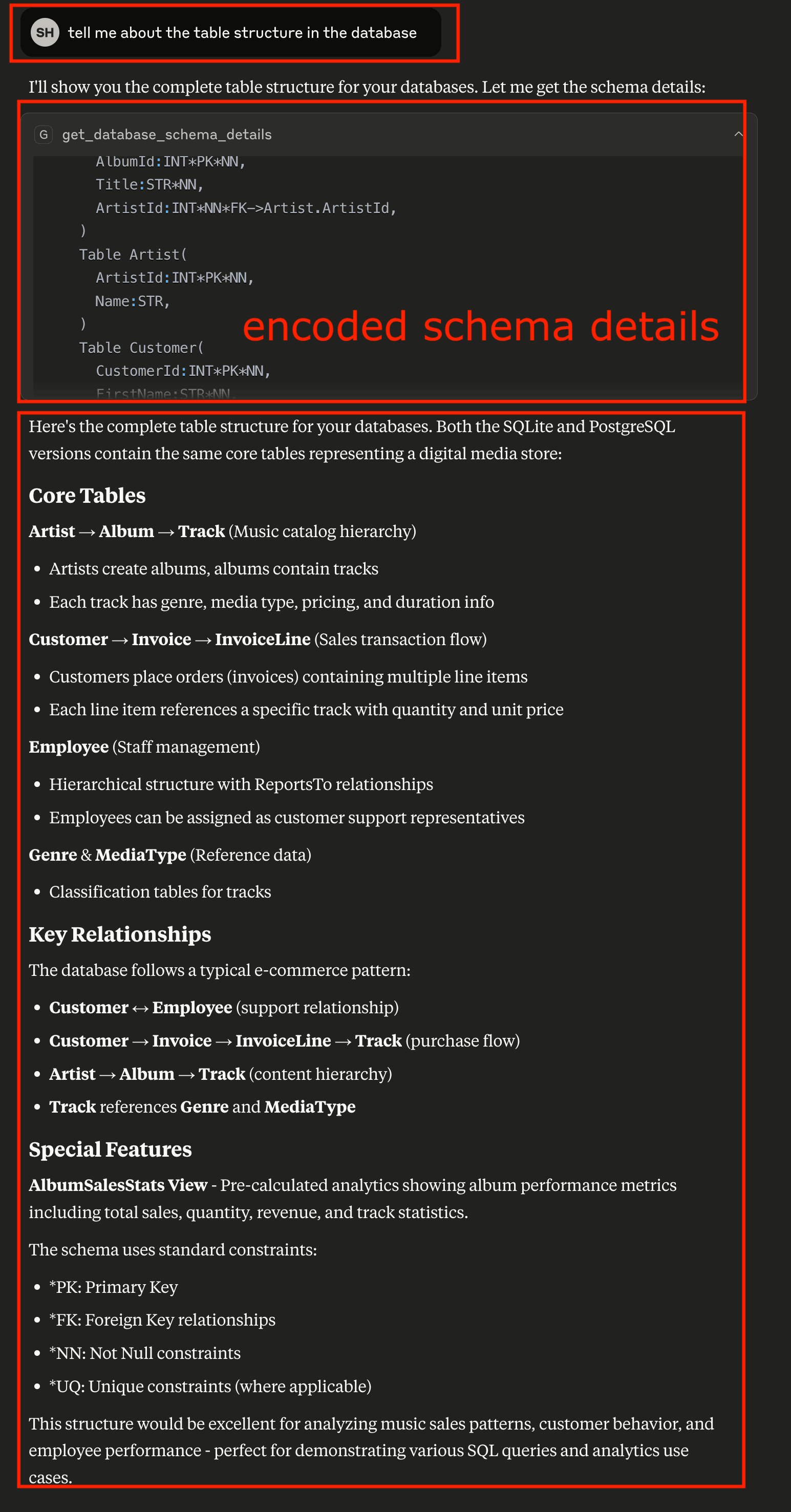
AI retrieves the complete schema structure, showing tables, columns, data types, and relationships. This gives you a comprehensive understanding of your data model.
Sample Database Schema Details
Database chinook sqlite(
  Schema default(
    Table Album(
      AlbumId:INT*PK*NN,
      Title:STR*NN,
      ArtistId:INT*NN*FK->Artist.ArtistId,
    )
    Table Artist(
      ArtistId:INT*PK*NN,
      Name:STR,
    )
    Table Customer(
      CustomerId:INT*PK*NN,
      FirstName:STR*NN,
      LastName:STR*NN,
      Company:STR,
      Address:STR,
      City:STR,
      State:STR,
      Country:STR,
      PostalCode:STR,
      Phone:STR,
      Fax:STR,
      Email:STR*NN,
      SupportRepId:INT*FK->Employee.EmployeeId,
    )
    Table Employee(
      EmployeeId:INT*PK*NN,
      LastName:STR*NN,
      FirstName:STR*NN,
      Title:STR,
      ReportsTo:INT*FK->Employee.EmployeeId,
      BirthDate:DT,
      HireDate:DT,
      Address:STR,
      City:STR,
      State:STR,
      Country:STR,
      PostalCode:STR,
      Phone:STR,
      Fax:STR,
      Email:STR,
    )
    Table Genre(
      GenreId:INT*PK*NN,
      Name:STR,
    )
    Table Invoice(
      InvoiceId:INT*PK*NN,
      CustomerId:INT*NN*FK->Customer.CustomerId,
      InvoiceDate:DT*NN,
      BillingAddress:STR,
      BillingCity:STR,
      BillingState:STR,
      BillingCountry:STR,
      BillingPostalCode:STR,
      Total:DEC*NN,
    )
    Table InvoiceLine(
      InvoiceLineId:INT*PK*NN,
      InvoiceId:INT*NN*FK->Invoice.InvoiceId,
      TrackId:INT*NN*FK->Track.TrackId,
      UnitPrice:DEC*NN,
      Quantity:INT*NN,
    )
    Table Track(
      TrackId:INT*PK*NN,
      Name:STR*NN,
      AlbumId:INT*FK->Album.AlbumId,
      MediaTypeId:INT*NN*FK->MediaType.MediaTypeId,
      GenreId:INT*FK->Genre.GenreId,
      Composer:STR,
      Milliseconds:INT*NN,
      Bytes:INT,
      UnitPrice:DEC*NN,
    )
    Table MediaType(
      MediaTypeId:INT*PK*NN,
      Name:STR,
    )
    View AlbumSalesStats(
      AlbumId:INT,
      AlbumTitle:STR,
      ArtistName:STR,
      TotalSales:INT,
      TotalQuantity:INT,
      TotalRevenue:DEC,
      AvgTrackPrice:DEC,
      TracksInAlbum:INT,
    )
  )
)
Database chinook postgres(
  Schema default(
    Table Employee(
      EmployeeId:INT*PK*NN,
      LastName:STR*NN,
      FirstName:STR*NN,
      Title:STR,
      ReportsTo:INT*FK->Employee.EmployeeId,
      BirthDate:TS,
      HireDate:TS,
      Address:STR,
      City:STR,
      State:STR,
      Country:STR,
      PostalCode:STR,
      Phone:STR,
      Fax:STR,
      Email:STR,
    )
    Table Artist(
      ArtistId:INT*PK*NN,
      Name:STR,
    )
    Table Album(
      AlbumId:INT*PK*NN,
      Title:STR*NN,
      ArtistId:INT*NN*FK->Artist.ArtistId,
    )
    Table Customer(
      CustomerId:INT*PK*NN,
      FirstName:STR*NN,
      LastName:STR*NN,
      Company:STR,
      Address:STR,
      City:STR,
      State:STR,
      Country:STR,
      PostalCode:STR,
      Phone:STR,
      Fax:STR,
      Email:STR*NN,
      SupportRepId:INT*FK->Employee.EmployeeId,
    )
    Table Track(
      TrackId:INT*PK*NN,
      Name:STR*NN,
      AlbumId:INT*FK->Album.AlbumId,
      MediaTypeId:INT*NN*FK->MediaType.MediaTypeId,
      GenreId:INT*FK->Genre.GenreId,
      Composer:STR,
      Milliseconds:INT*NN,
      Bytes:INT,
      UnitPrice:DEC*NN,
    )
    Table Genre(
      GenreId:INT*PK*NN,
      Name:STR,
    )
    Table MediaType(
      MediaTypeId:INT*PK*NN,
      Name:STR,
    )
    Table Invoice(
      InvoiceId:INT*PK*NN,
      CustomerId:INT*NN*FK->Customer.CustomerId,
      InvoiceDate:TS*NN,
      BillingAddress:STR,
      BillingCity:STR,
      BillingState:STR,
      BillingCountry:STR,
      BillingPostalCode:STR,
      Total:DEC*NN,
    )
    Table InvoiceLine(
      InvoiceLineId:INT*PK*NN,
      InvoiceId:INT*NN*FK->Invoice.InvoiceId,
      TrackId:INT*NN*FK->Track.TrackId,
      UnitPrice:DEC*NN,
      Quantity:INT*NN,
    )
    View AlbumSalesStats(
      AlbumId:INT,
      AlbumTitle:STR,
      ArtistName:STR,
      TotalSales:INT,
      TotalQuantity:INT,
      TotalRevenue:DEC,
      AvgTrackPrice:DEC,
      TracksInAlbum:INT,
    )
  )
)
Example 3: Ask Business Questions
This is where the magic happens—ask real business questions in natural language:
“Find me the top 3 sales albums”
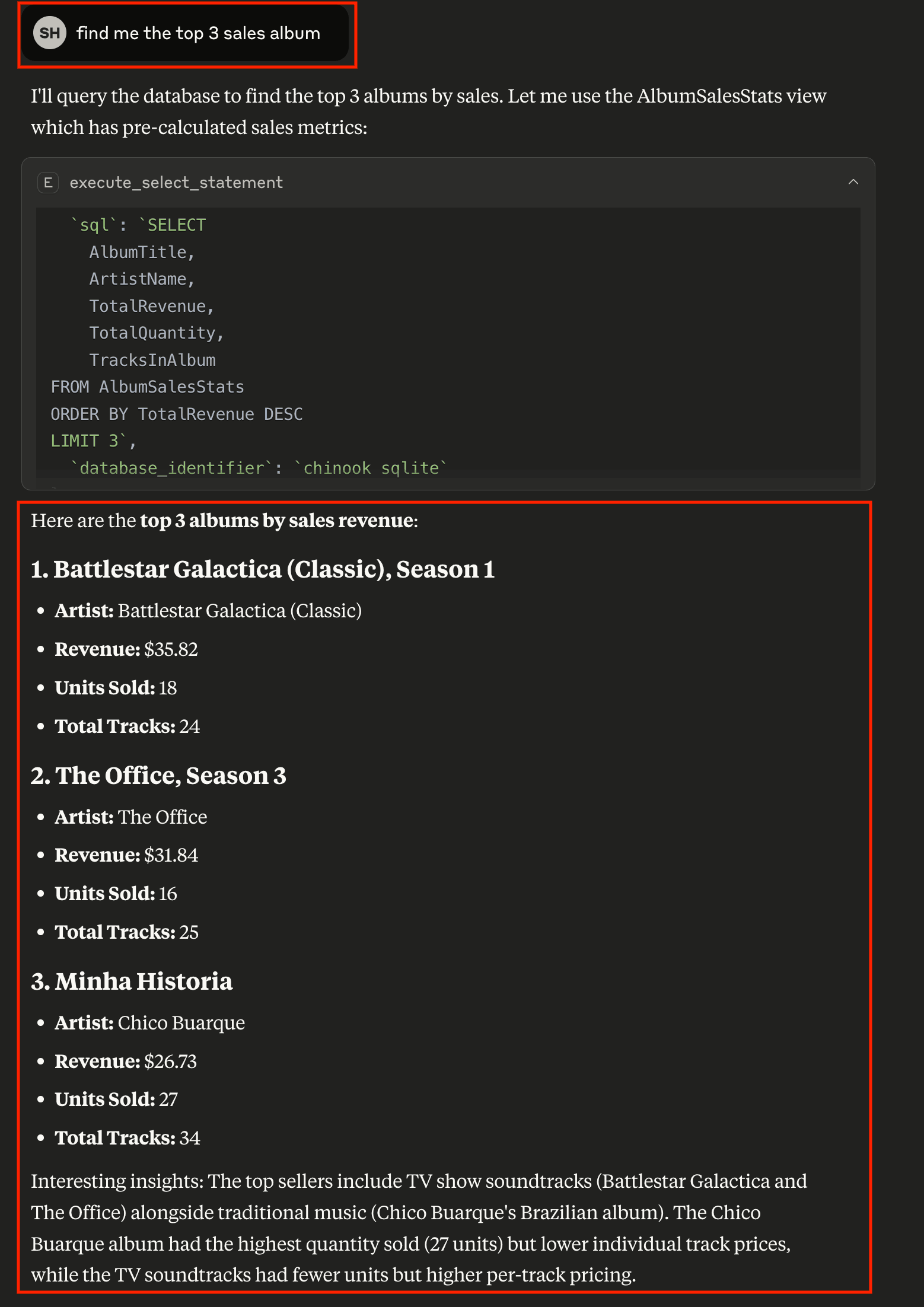
AI writen SQL query
SELECT
    AlbumTitle,
    ArtistName,
    TotalRevenue,
    TotalQuantity,
    TracksInAlbum
FROM AlbumSalesStats
ORDER BY TotalRevenue DESC
LIMIT 3
Encoded Query Result
# Execution Time
0.014 seconds

# Query Result
| AlbumTitle                               | ArtistName                     |   TotalRevenue |   TotalQuantity |   TracksInAlbum |
|:-----------------------------------------|:-------------------------------|---------------:|----------------:|----------------:|
| Battlestar Galactica (Classic), Season 1 | Battlestar Galactica (Classic) |        35.8200 |              18 |              24 |
| The Office, Season 3                     | The Office                     |        31.8400 |              16 |              25 |
| Minha Historia                           | Chico Buarque                  |        26.7300 |              27 |              34 |
AI automatically:
Understands your business question
Writes the appropriate SQL query
Executes it against your database
Formats the results clearly
Provides insights about the data
Example 4: Create Visual Reports
Generate visual reports and charts from your data:
“Create a visualization showing sales trends”
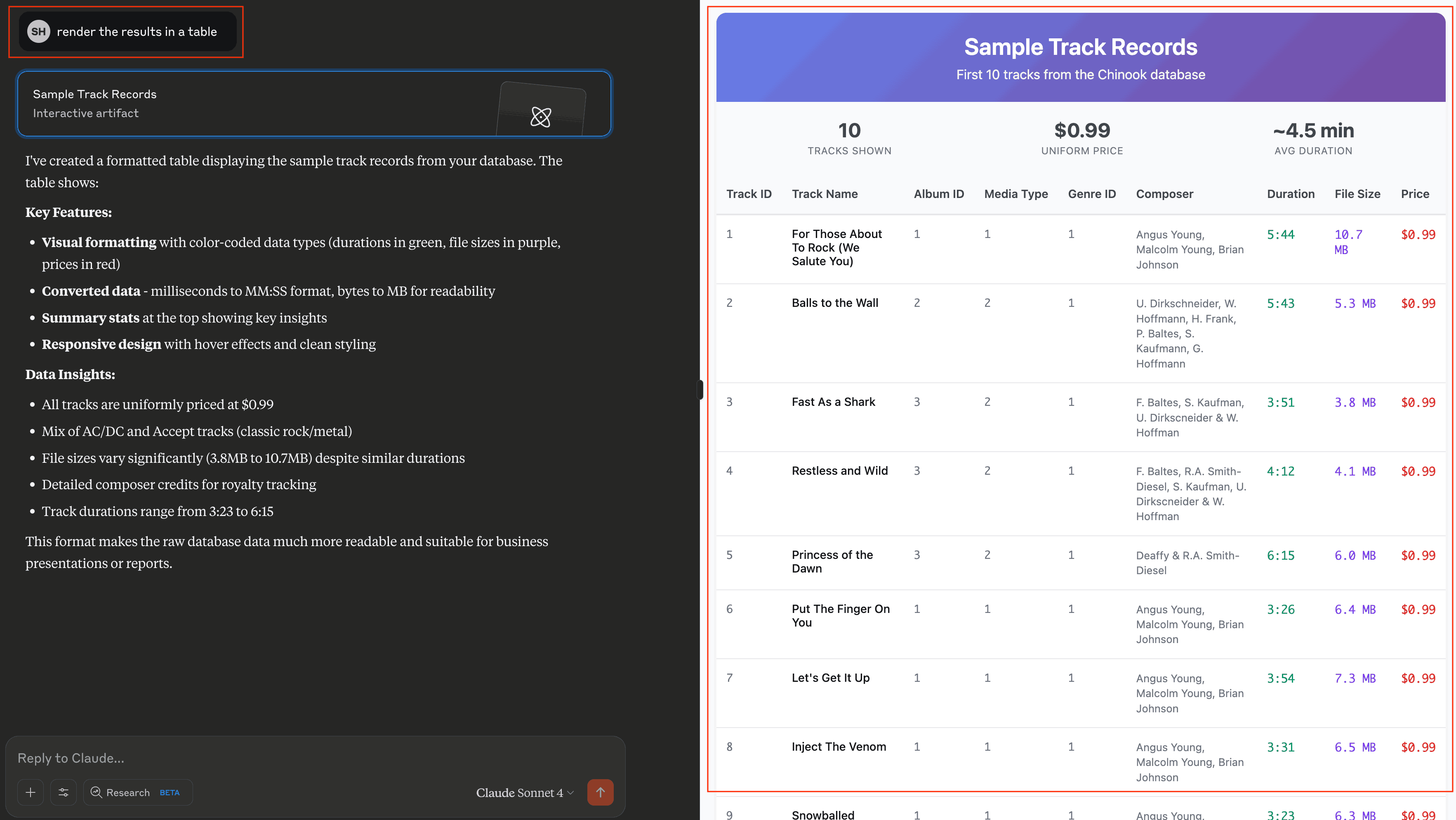
AI can create various types of visualizations including bar charts, pie charts, and trend analyses—all from your database data.
Example 5: Generate ER Diagrams
Understand your data relationships visually:
“Create an entity relationship diagram for the music store database”

AI generates professional ER diagrams showing how your tables connect, helping you understand the database structure at a glance.
What’s Next?
Congratulations! You now have a fully functional AI-powered database assistant. Here’s how to expand your setup and unlock more capabilities:
Immediate Next Steps
Try More Queries
Start experimenting with different types of questions:
“What are the most popular music genres by sales?”
“Show me customer demographics by country”
“Which employees have the highest sales performance?”
“Create a report showing revenue trends over time”
Connect Your Own Databases
Replace the sample Chinook database with your real data:
Update the connection URL in your configuration
Add multiple databases for different environments
Configure table filters to control access
Advanced Configuration
Multi-Database Setup
Connect to multiple databases simultaneously:
{
    "databases": [
        {
            "identifier": "production_db",
            "description": "Production PostgreSQL database",
            "connection": {"type": "sqlalchemy", ...}
        },
        {
            "identifier": "analytics_db",
            "description": "Analytics warehouse",
            "connection": {"type": "sqlalchemy", ...}
        }
    ]
}
Security & Access Control
Set up table filtering to filter out irrelevant data
Configure read-only database users
Use environment variables for database credentials
Performance Optimization
Set up query timeouts and result limits
Monitor query performance and optimize slow operations
Real-World Applications
- Business Analytics
Use natural language to generate business reports, analyze trends, and create executive dashboards directly from your operational databases.
- Data Exploration
Quickly understand new datasets, discover data quality issues, and explore relationships between tables without writing complex SQL.
- Reporting Automation
Create automated reports by asking AI to generate and format query results, export to files, and schedule regular data exports.
- Database Documentation
Generate comprehensive database documentation, ER diagrams, and data dictionaries automatically from your schema.
Ready to transform how you work with data? Start with your own databases and see what insights you can uncover!